Free trial
The page says no registration is required and describes 4K upscaling as free, but it gives no trial length or usage limits.
Learn moreBrowser-based video upscaler to 4K with denoise and color fixes
Own BeautyPlus AI Video Enhancer? Verify ownership to get a dofollow link
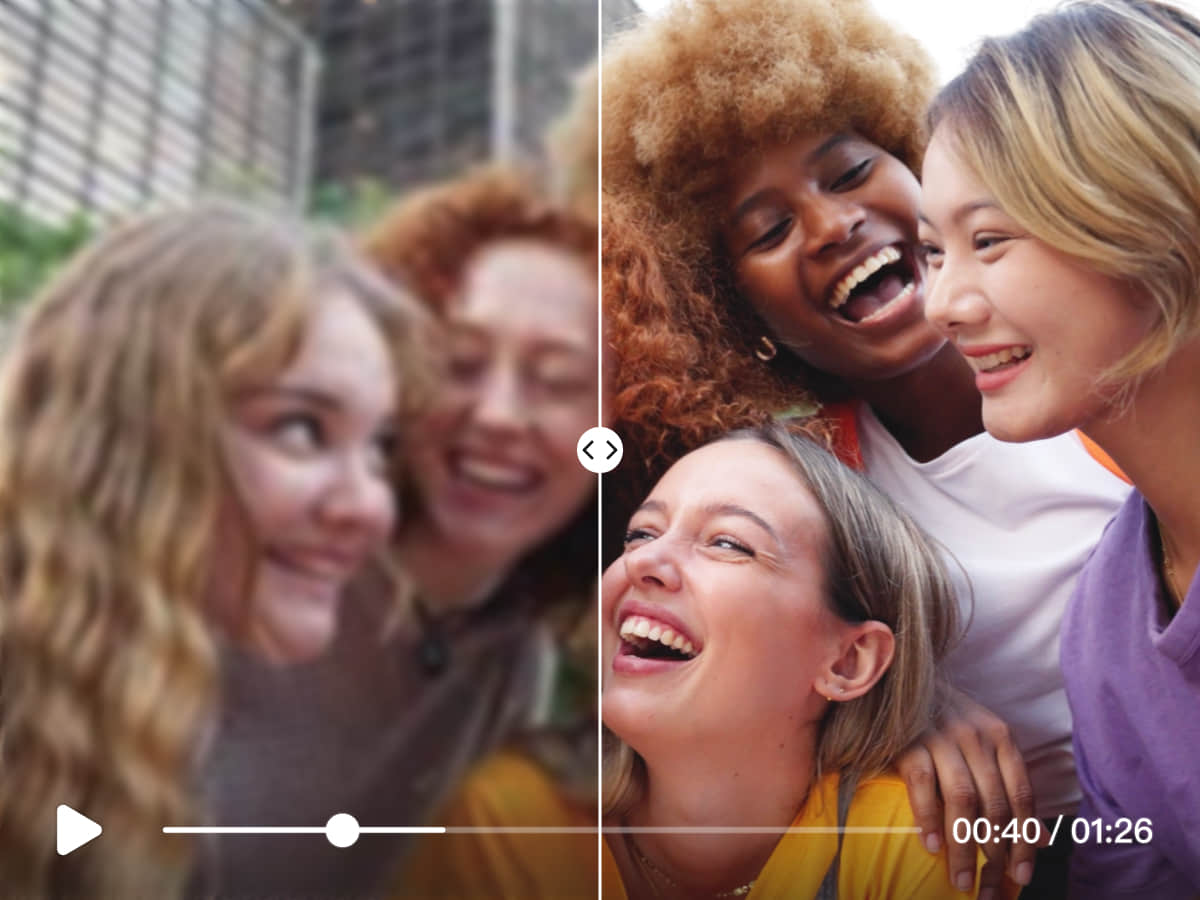
BeautyPlus AI Video Enhancer upscales videos to 2K or 4K in the browser, removes noise, brightens dark footage, fixes color and interpolates frames to 60 or 120fps, with no sign-up required to try it.
BeautyPlus AI Video Enhancer is a browser-based tool that raises the quality of existing footage without a separate editing suite. It upscales clips to 2K or 4K, reduces grain, brightens dim scenes and corrects color casts caused by poor lighting or camera limitations. The page states that no sign-up is needed to try it, which keeps the barrier low for one-off jobs. The tool is aimed at casual and semi-professional users with footage that looks worse than it should. Typical cases include old family and holiday videos, blurry portrait clips, nighttime recordings full of noise, and gameplay captures that need smoother motion. The frame interpolation feature can lift 24fps or 30fps recordings to 60fps or 120fps, and it also reduces stutter and compression artifacts that build up after repeated uploads to social platforms. In practice the workflow has three steps. A user drags a video into the page (MP4, M4V or MOV, up to 4K, under 200MB and under 10 minutes), picks one of three enhancement modes, and downloads the result. Portrait HD rebuilds facial detail and skin texture, AI Repair upscales to 2K, and AI Ultra HD targets 4K. The site says the upscaling adds new pixels rather than stretching existing ones, and that output can be used in personal or commercial projects. Within the wider market, this sits closer to quick online enhancers than to desktop restoration software, trading fine manual control for speed and simplicity. It belongs to a larger BeautyPlus family of web tools that includes an unblur tool, a pixelated-video fixer, an HD converter, a video watermark remover, a video background remover and image upscalers, so one account can cover several adjacent clean-up tasks. A promotional banner points to paid plans with more advanced features, though the page does not spell out which limits apply to free use.
The page says no registration is required and describes 4K upscaling as free, but it gives no trial length or usage limits.
Learn moreThe homepage promotes a 17% discount on paid plans with more advanced features but lists no prices. Marketing copy calls 4K upscaling free, and details of free versus paid limits are not stated on the page.
Learn moreUpscaling to 2K or 4K, three modes (Portrait HD, AI Repair, AI Ultra HD), noise reduction, low-light brightening, color correction, face detail reconstruction and frame interpolation to 60fps or 120fps.
 AI Angels400+ customizable AI girlfriends for NSFW chat, voice calls, and roleplay
 Candy AIExperience the future of companionship with AI friends who chat, role-play, and connect with you on a human level.
 ourdream.aiA vast AI roleplay platform with millions of characters for chat, images, video and voiceAI Angels400+ customizable AI girlfriends for NSFW chat, voice calls, and roleplayCandy AIExperience the future of companionship with AI friends who chat, role-play, and connect with you on a human level.ourdream.aiA vast AI roleplay platform with millions of characters for chat, images, video and voice