What these tools do
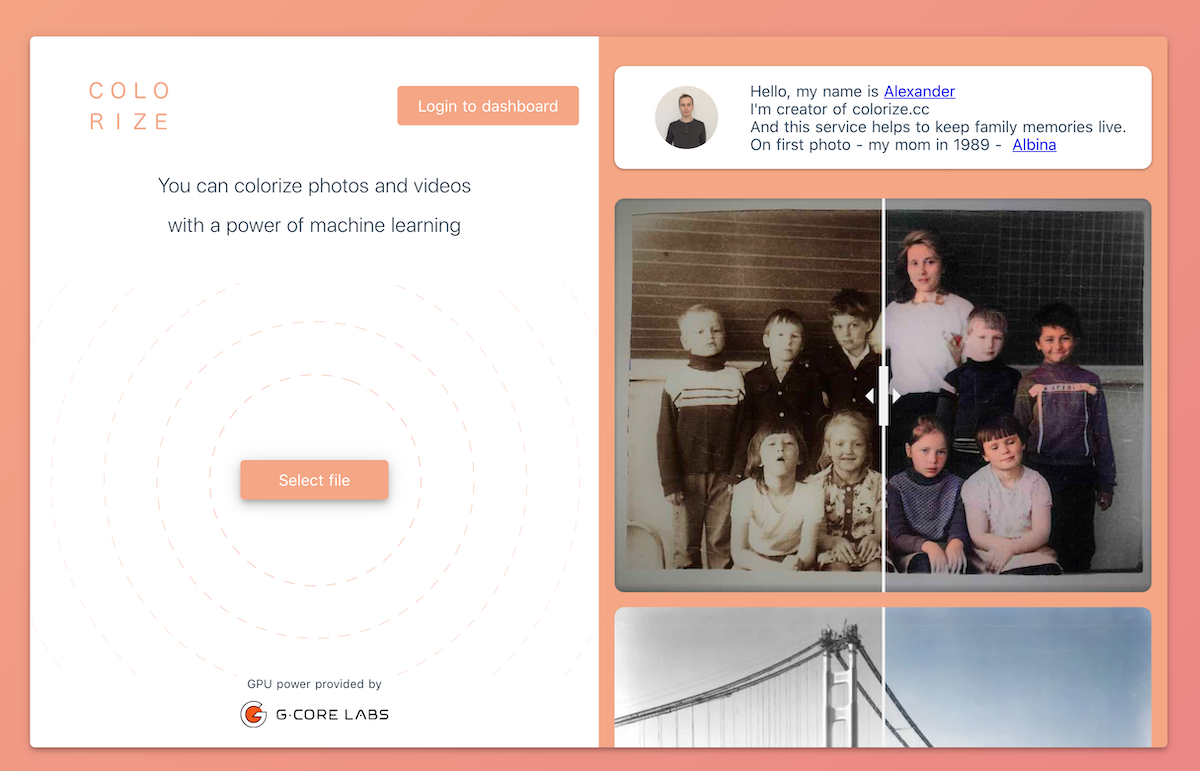
A video colorizer takes black and white or heavily faded footage and assigns colors to it, typically frame by frame using AI models trained on large image collections. The output is an estimate, not a historical record: faces and skin tones usually land close, while small objects and odd lighting can drift. In practice colorization rarely ships alone. The tools on this page bundle it with upscaling and denoising, because old footage is usually soft and grainy as well as monochrome, and a colorized clip that is still 480p and noisy is not much of an improvement. The audience is people with archive material: family films, documentary researchers, editors repurposing historical clips, and social media creators building nostalgia content. What it replaces is a manual grading job that would take hours per minute and still require a colorist to guess at plausible tones.
How to choose one
Start with the source. If the footage is clean but monochrome, colorization alone is enough and a lighter tool will do. If it is also low resolution or noisy, pick a tool that handles upscaling, interpolation and colorization in one pass, since running three separate processes on the same clip tends to compound artifacts.
Then look at where the work happens. Browser based tools suit occasional jobs and shared machines, while desktop software suits long files and repeat batches where upload time and file size limits get in the way. Check the pricing model against how often you will use it: a subscription is hard to justify for a one off family archive project, and a free tier is worth testing before committing. Finally, check the output resolution and frame handling, because colorization quality is easy to judge on a still and harder to judge on motion, where colors can flicker between frames.
Notable tools
bigmp4 runs AI upscaling, frame interpolation and colorization for video files in the browser. It is a paid web app, so it suits people processing a defined batch of clips without installing anything.
AnyEnhancer by iMobie combines AI upscaling, denoising and colorization in desktop software for Windows and MacOS. It offers a subscription with a free trial, which makes it practical to test on your own footage before paying.
TotalMedia is a browser based AI video upscaler to 4K and 8K with smoothing, on a freemium model. It is the upscaling half of the job rather than a dedicated colorizer, so it fits when the clip is already in color and needs resolution and cleanup instead.
Common questions
What does an AI video colorizer actually do?
It predicts color for each frame of black and white footage using models trained on color images, then applies the result consistently across the clip. Results are plausible rather than accurate, so skin tones and skies usually read well while small details and unusual lighting can be wrong. Expect to review the output and re run difficult scenes rather than accept the first pass.
Can I video colorize free?
Sometimes, within limits. TotalMedia offers a freemium tier focused on upscaling, and AnyEnhancer includes a free trial that lets you test colorization on your own footage before subscribing. Free runs usually come with resolution caps, watermarks or short clip lengths, so treat them as a test of quality rather than a production route.
Should I colorize before or after upscaling?
Do the cleanup and upscaling first where the tool allows it, then colorize, because color models work better on cleaner frames. Tools that combine upscaling, denoising and colorization in one pass handle the ordering for you, which is the simpler path for long or badly degraded clips.
When to look elsewhere
If the clip is already in color and the problem is grain, blur or low resolution, head to Unblur Video instead. If the goal is cutting a long recording into short clips rather than restoring it, Clip Finder covers that job.