imgUpscaling

Browser-based image processing with 20+ tools and no uploads

Beginner
Screenshot of imgUpscaling, Browser-based image processing with 20+ tools and no uploads

What is imgUpscaling?

imgUpscaling is an AI image upscaler tool. A free, no-signup browser toolbox of 20+ image utilities (crop, compress, convert, watermark, collage, mosaic, compare, GIF) that processes files locally and adds a batch workflow designer. The advertised AI expansion, erasing and background removal features are still listed as upcoming.

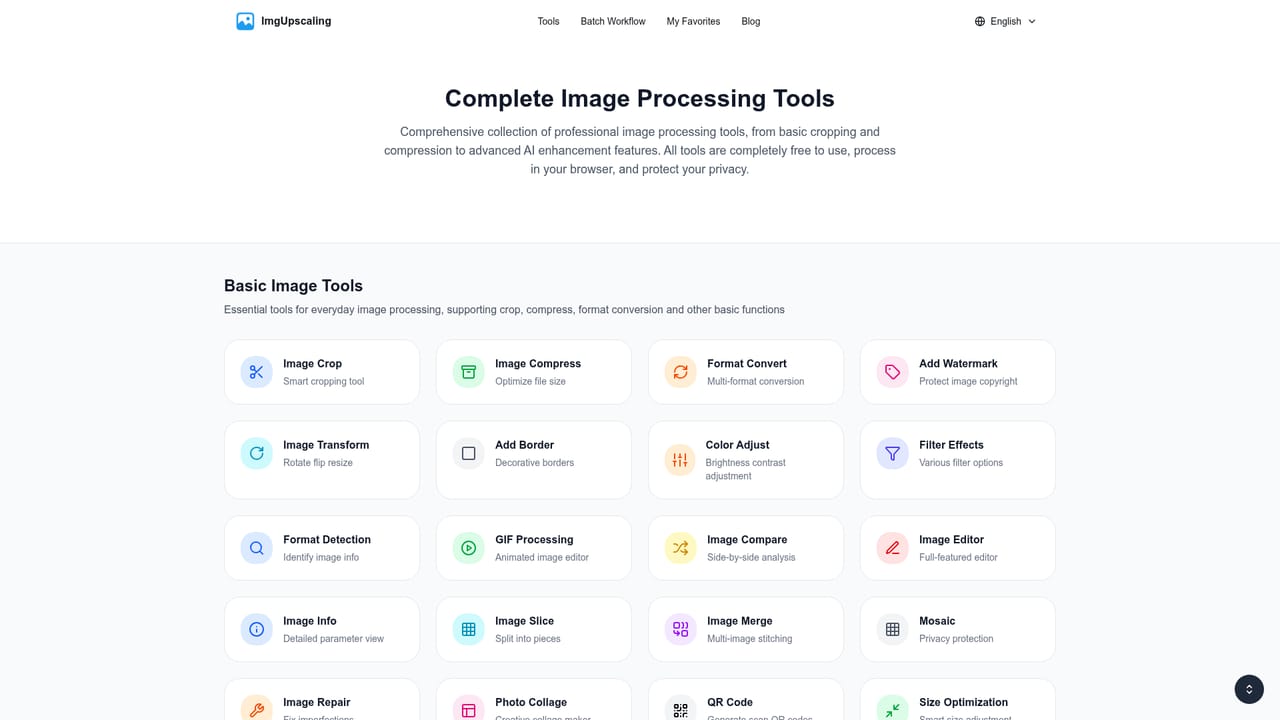
imgUpscaling is a browser-based image processing suite built around more than twenty single-purpose tools rather than one crowded canvas. The roster covers cropping, compression, format conversion, watermarking, flipping and rotating, borders and shadows, color adjustment, filters, format detection, GIF creation, side-by-side comparison, a basic drawing editor, image metadata inspection, slicing, merging, mosaic blur, photo collage and QR code generation. It markets itself as a professional online editor, but the practical experience is closer to a toolbox: pick the task, load a file, adjust a small set of controls, export. The technical claim that matters most is local processing. Image files stay in the browser and are not sent to a server, which is a meaningful distinction for anyone handling client photos, product shots or internal documents under confidentiality obligations. The site attributes its speed to WebAssembly and multi-threading, and says tools run roughly 10x faster than traditional solutions. Quality claims lean on 16-bit color depth support, aimed at designers who care about posterization and banding after repeated edits. Batch handling exists through a workflow designer that chains operations across multiple files, and file guidance is 50MB per image and 500MB total per batch. The audience splits into two groups. Casual users get immediate value: no account, no installation, responsive layout on phones and tablets. Production users get the batch designer and the comparison and metadata tools that bigger editors tend to bury. The honest caveat is that the AI layer is not live yet. Expansion, smart erasing, background removal and image enhancement are described as in development with a vague soon timeline, so buyers should judge the current product on its deterministic editing tools, not on the AI promise. Competitively, this sits between heavyweight desktop editors and thin online converters. It lacks layers-based compositing depth and raw development, but it covers common file chores quickly and privately. Anyone weighing Photoshop alternatives should treat imgUpscaling as a fast utility layer rather than a replacement.

How do you use imgUpscaling?

  1. 1Open the tools directory
    Start at the tools page, which lists every utility with a short description. Favorites can be pinned here for repeat use.
    imgUpscaling — Open the tools directory
  2. 2Load your image
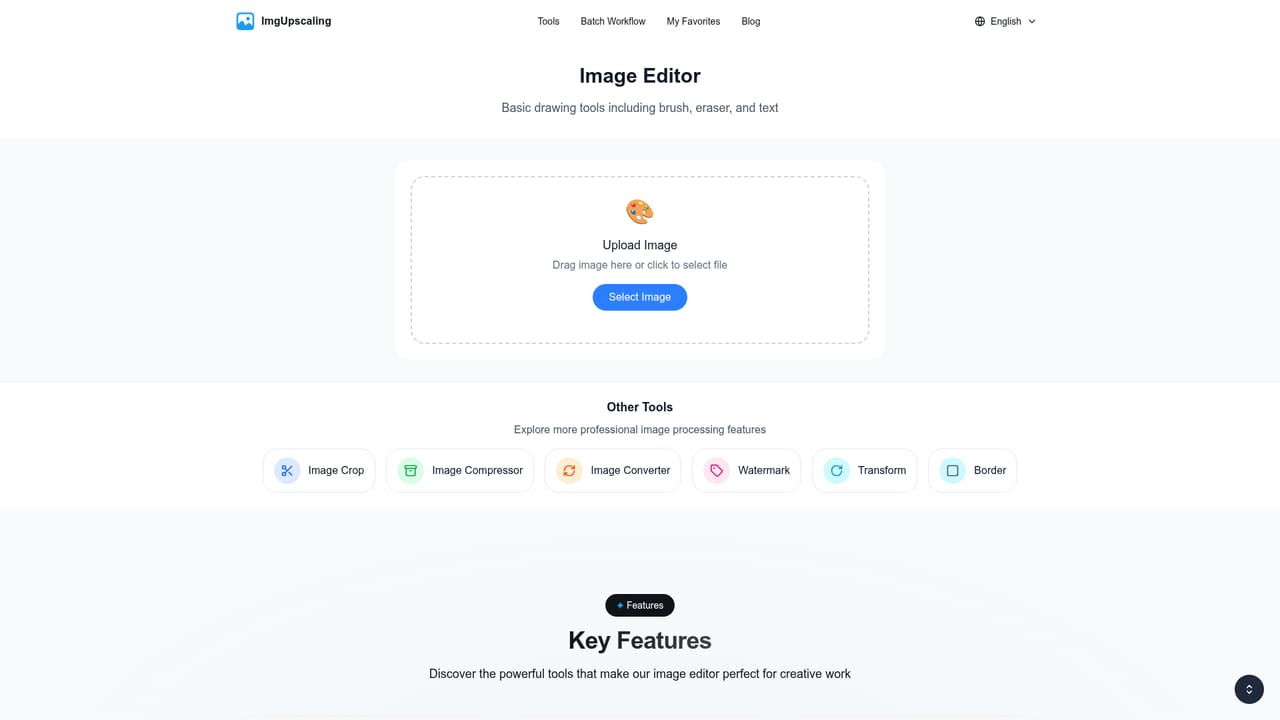
    Open the tool you need and add a JPEG, PNG, WebP, GIF, BMP or TIFF file. Processing happens in the browser, so nothing is uploaded.
    imgUpscaling — Load your image
  3. 3Set the tool parameters
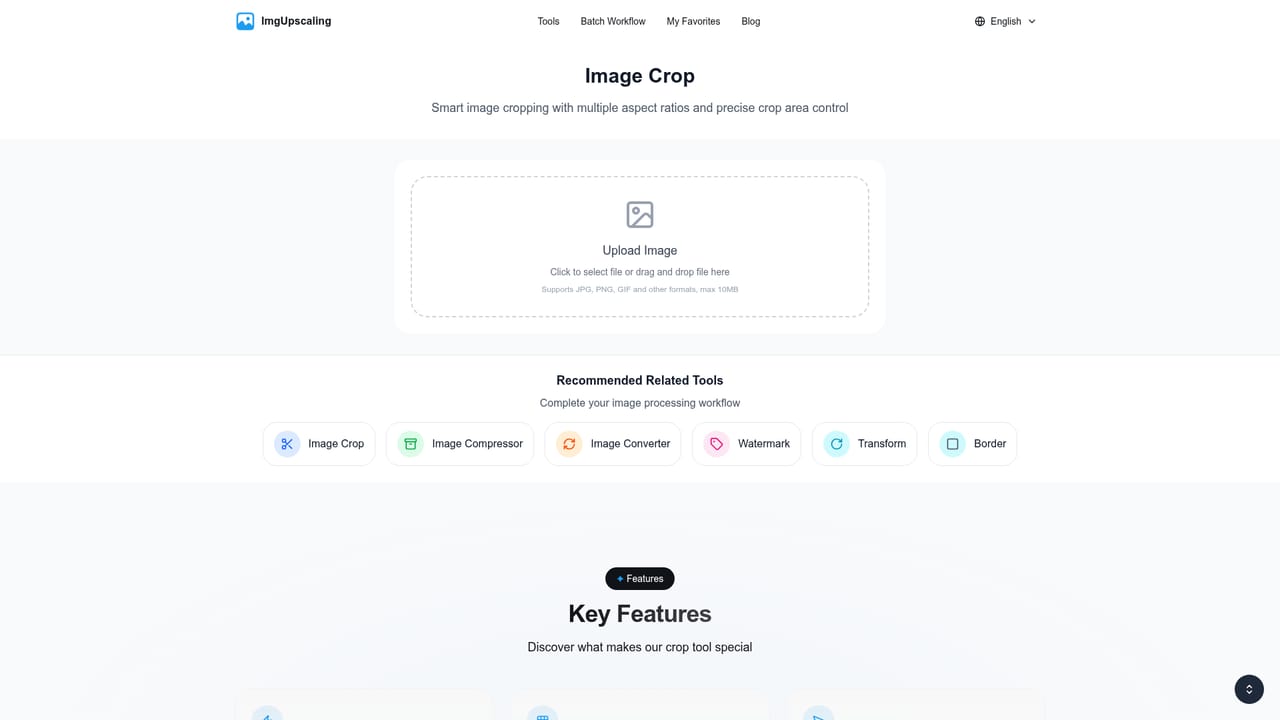
    Each tool exposes a small control set: aspect ratios for cropping, quality levels for compression, target formats for conversion, or watermark text and placement.
    imgUpscaling — Set the tool parameters
  4. 4Repair and compare results
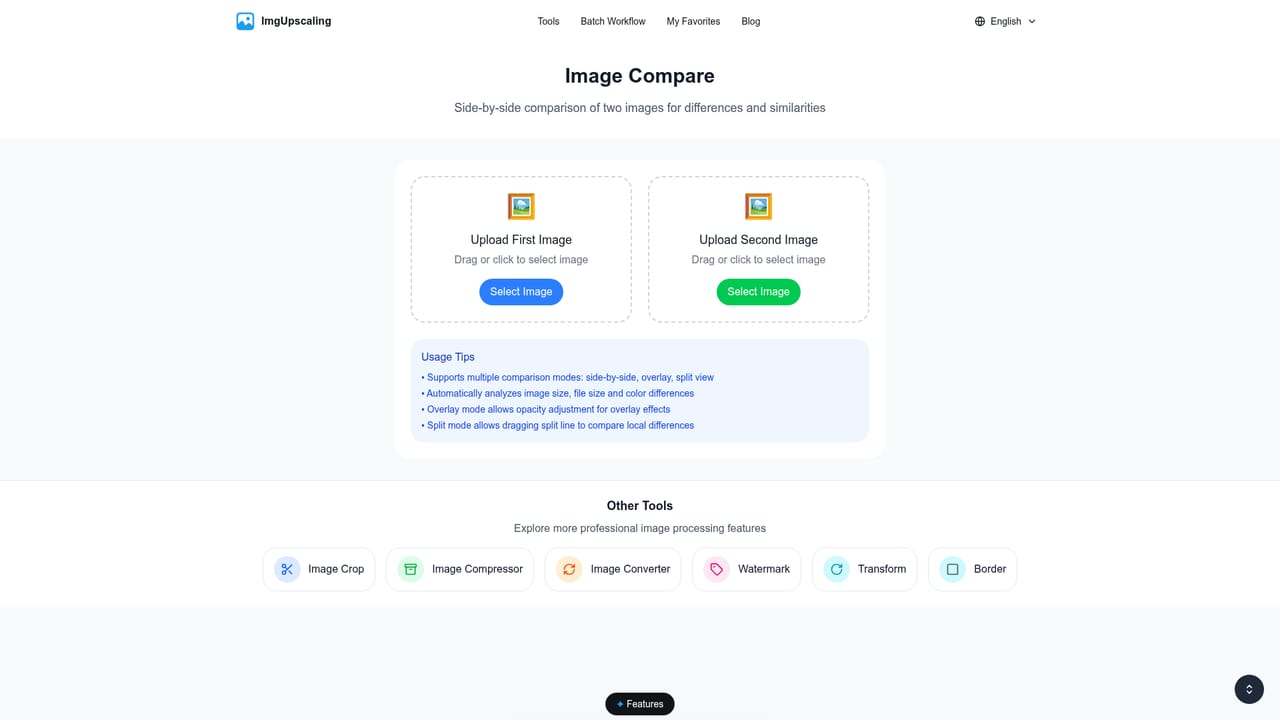
    Use Image Repair for scratches, noise and blur, then check the outcome against the original with the side-by-side Image Compare view.
    imgUpscaling — Repair and compare results
  5. 5Batch several images together
    For volume work, build a processing chain that applies the same operations to multiple files in one pass, keeping within the 500MB batch guidance.
  6. 6Download the output
    Preview the result live and download the processed file at its original resolution.

Pros and cons

Pros

  • More than twenty focused tools cover routine file chores without installing softwareAI
  • Files are processed locally in the browser and never uploaded to a serverAI
  • No account needed for basic features, which lowers friction for quick jobsAI
  • Batch workflow designer chains operations across many images at onceAI
  • Works on phones and tablets through a responsive layoutAI

Cons

  • AI expansion, erasing, background removal and enhancement are announced as coming soon, not available todayAI
  • Recommended limits of 50MB per file and 500MB per batch cap large or high-volume workAI
  • No layers, masks or raw development, so it cannot replace a full desktop editorAI
  • No pricing page or documentation on the site, leaving commercial terms unclearAI

How much does imgUpscaling cost?

Features

A catalog of 20+ utilities spanning crop, compression, format conversion, watermarking, rotate and flip, borders, color adjustment, filters, format detection, GIF creation, image comparison, a basic drawing editor, metadata viewer, slicing, merging, mosaic blur, AI repair, photo collage, QR codes and size optimization. Local in-browser processing, batch workflows, 16-bit color depth and mobile support are the headline capabilities.

Learn more

Frequently asked questions about imgUpscaling

  • How do you use imgUpscaling?
    The walkthrough on this page covers 6 steps: 1. Open the tools directory 2. Load your image 3. Set the tool parameters 4. Repair and compare results 5. Batch several images together 6. Download the output.
  • What platforms does imgUpscaling support?
    imgUpscaling is available on Web App.
  • What are the limitations of imgUpscaling?
    AI expansion, erasing, background removal and enhancement are announced as coming soon, not available today. Recommended limits of 50MB per file and 500MB per batch cap large or high-volume work. No layers, masks or raw development, so it cannot replace a full desktop editor.

Status

StatusActive
Views0
Outbound clicks0
Added10/22/2026

Platforms

Web App

Pricing

Free