Free trial
After signing in, each account gets one free AI preview of the first fifteen seconds of its own video. No payment details are needed to inspect that result.
Learn moreRemove burned-in captions, titles and timestamps from video in the browser.
Own Video Text Remover? Verify ownership to get a dofollow link

Video Text Remover is an image improvement tool that removes burned-in captions, titles and timestamps from video in the browser. A focused browser workspace that removes hardcoded subtitles, titles and timestamps from video using AI background reconstruction. Mark a region or use automatic detection, inspect one free fifteen second preview, then pay with non-expiring one-time credits for full processing.
Video Text Remover is a browser based tool for stripping hardcoded text out of video footage. Burned-in subtitles, dated title cards, seasonal price tags and recording timestamps are part of the image itself, so they cannot simply be switched off in an editor. This service asks you to mark the area containing the text, then uses AI background reconstruction to fill that region while keeping the original framing. Nothing is blurred or cropped away. The workflow is deliberately narrow. You upload an MP4, MOV or WebM file up to 2 GiB, 60 minutes and 1080p, then either draw a region around the text (including its outlines and shadows) or switch to automatic detection for text that moves around the frame. New accounts get one free preview covering the first fifteen seconds, so you can judge the repair on your own footage before committing. Full processing runs on prepaid credits: one credit per five seconds in selected-region mode, two per five seconds for whole-frame detection, rounded up. There is no subscription and purchased credits do not expire. Tasks run in the background and remain accessible from a dashboard until results expire after seven days. It suits editors repurposing archive footage, social teams updating an old campaign clip, and anyone preparing a video for fresh subtitles in another language. The preview is a fair reflection of the honest limitation here: results depend on text size, background detail and motion, and difficult scenes with faces, foliage or water may show distortion or flicker. Small fixed text over a simple background is the comfortable case. Choosing between this and a desktop compositor comes down to scale of need. Adobe's Content-Aware Fill and similar tools give frame level control but require software, time and skill. Video Text Remover trades that control for a short, guided pipeline in a browser tab. The privacy notice covers data handling; only edit footage you own or are licensed to modify.
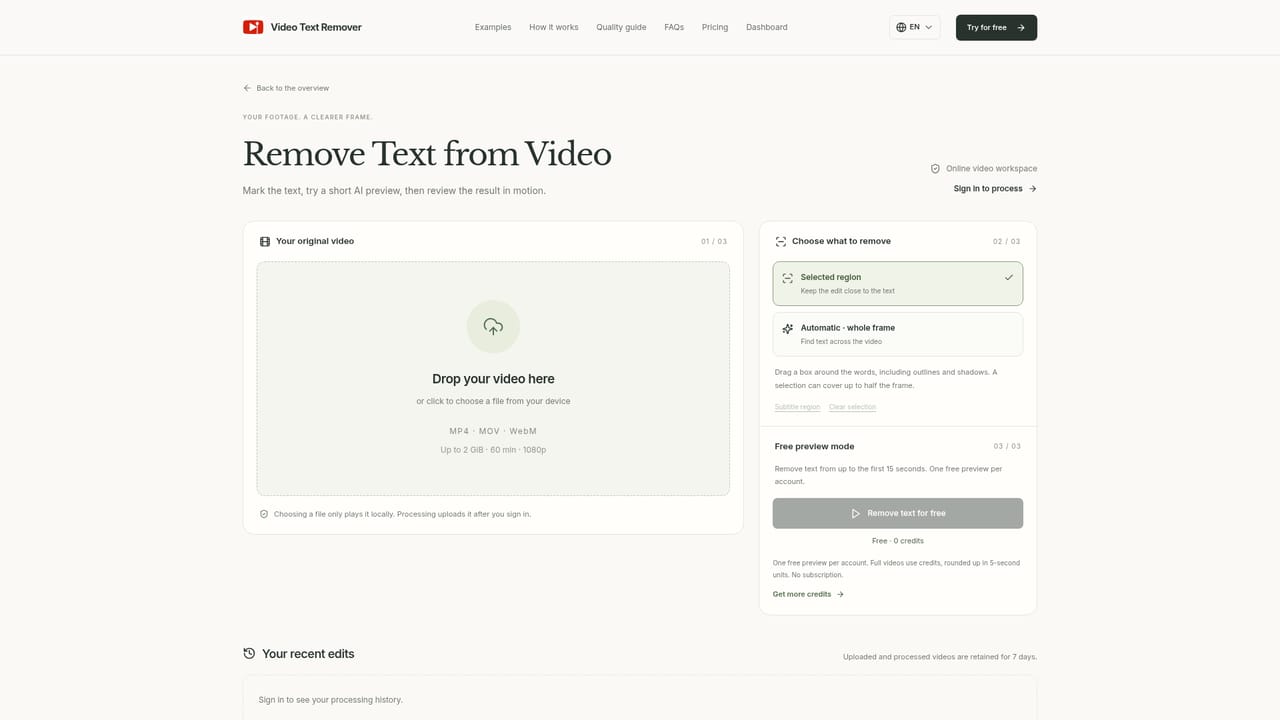
After signing in, each account gets one free AI preview of the first fifteen seconds of its own video. No payment details are needed to inspect that result.
Learn moreFull processing uses prepaid credits with no subscription and no automatic renewal. Selected-region mode costs one credit per five seconds, whole-frame detection costs two, rounded up, and purchased credits do not expire. Credit pack prices are not stated on the homepage.
Learn moreHelp is limited to an on-site FAQ covering formats, credit costs, moving text, previews, watermarks, processing times and data retention, plus a linked privacy notice. No live chat or email channel is listed.
Sign in with Google is the only integration described. The editor is a standalone browser workspace with no plugin or API coupling.
Selected-region or automatic text detection, AI background reconstruction that preserves framing instead of blurring or cropping, support for MP4, MOV and WebM up to 2 GiB, 60 minutes and 1080p, credit estimates before processing, background tasks with status tracking, original versus processed comparison, and result downloads.
Learn more AI Angels400+ customizable AI girlfriends for NSFW chat, voice calls, and roleplay
 Candy AIExperience the future of companionship with AI friends who chat, role-play, and connect with you on a human level.
 ourdream.aiA vast AI roleplay platform with millions of characters for chat, images, video and voiceAI Angels400+ customizable AI girlfriends for NSFW chat, voice calls, and roleplayCandy AIExperience the future of companionship with AI friends who chat, role-play, and connect with you on a human level.ourdream.aiA vast AI roleplay platform with millions of characters for chat, images, video and voice


